
Remove Line Breaks from Names, Addresses & Form Data Before Import
A customer's name should be one line. Tell that to the paste that brought it in two — and to every import, validator, and label printer that meets it afterward. This guide covers detecting hidden breaks in data entry fields, flattening them safely, and knowing which fields must keep their structure.
How Hidden Breaks Get Into Form Fields
Nobody types a line break into a first name field. The break arrives with the paste — and form fields rarely tell you it is there until something downstream fails.
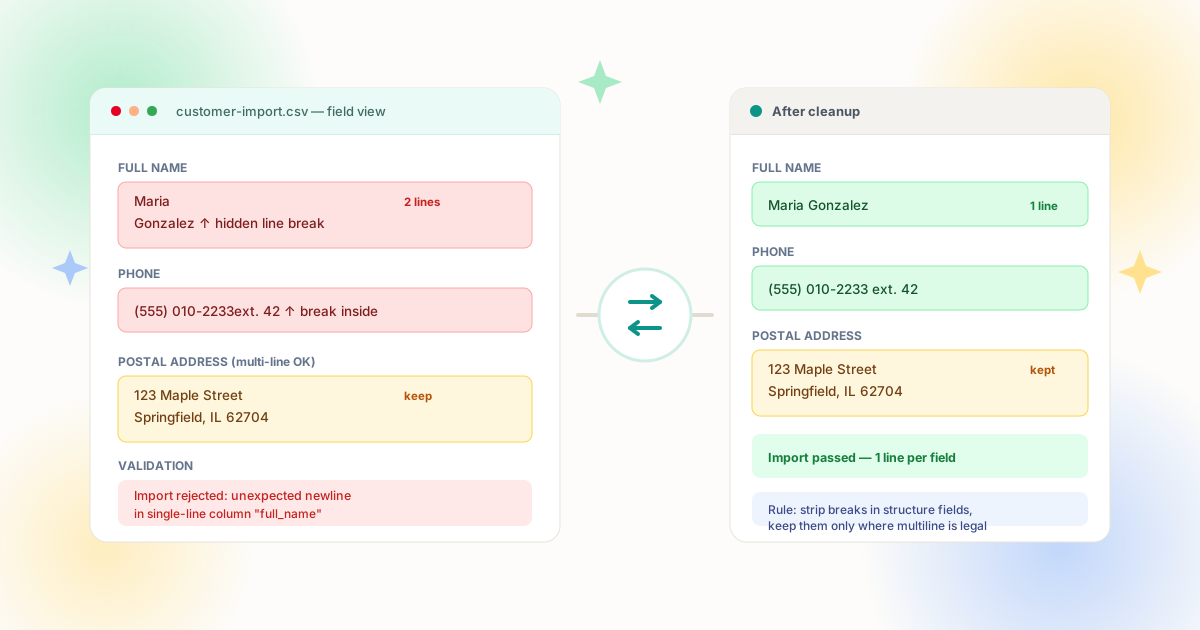
Consider the ordinary paths. An email signature stores the sender's name across two lines; copying it into a lead-capture form brings the structure along. A spreadsheet cell formatted for display with Alt+Enter holds "Maria\nGonzalez"; a bulk import of that sheet writes both lines into a single-column field. Text copied from a PDF — the source documented in our PDF cleanup guide — is broken at every printed margin, so names and addresses extracted from invoices arrive pre-wrapped. Web pages, old CRM exports, and chat messages add more of the same. The field itself is single-line; the value inside it is not.
The consequences surface in a predictable order. Inline validation flags the value if you are lucky. If not, the record saves and fails later: an import job rejects the row for an unexpected newline, a search index truncates the name at the break, a mail-merge prints a two-line envelope where one was expected, or a phone field stores "(555) 010-2233\next. 42" and the dialer reads only the first half. Data entry teams see the symptom as "import errors"; the actual cause is a character they cannot see. Our CSV and data fields guide covers the batch version of this failure — this article is its field-level counterpart.
Email Signatures
Names, titles and phone numbers stacked across lines — copied wholesale into CRM contact fields during prospecting.
Formatted Cells
Alt+Enter line breaks created for display purposes ride along in every export and import of the sheet.
PDF & Scanned Forms
Extracted text mirrors printed layout; names wrapped at the margin and addresses split by column rules.
Pasted Web Text
Directory listings and prior form submissions copy with their visual line structure intact — including invisible breaks.
Step 1: Detect Before You Fix
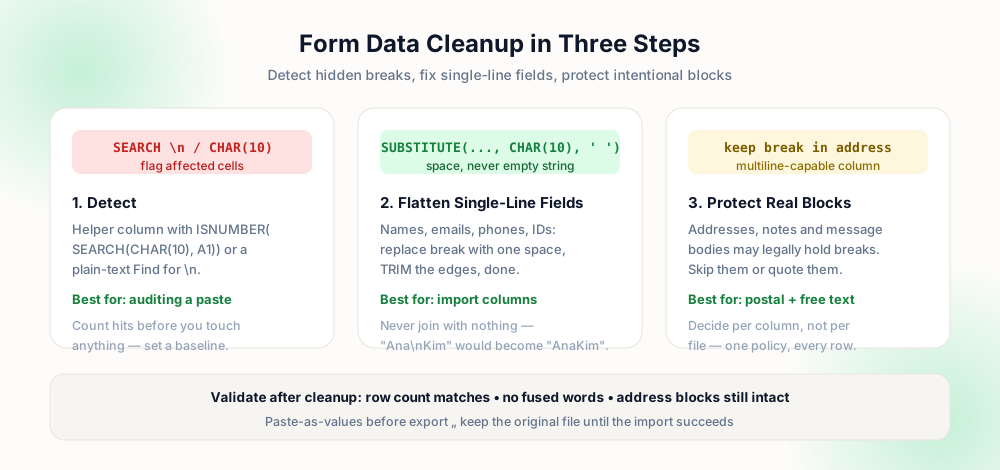
Cleanup without measurement is guesswork. Three one-line detectors — one for each common environment — give you an exact count of affected values before you change anything:
| Environment | Detection | Output |
|---|---|---|
| Excel / Sheets helper | ISNUMBER(SEARCH(CHAR(10), A1)) | TRUE flag per cell; fill down and filter |
| Excel quick count | =COUNTIF(A:A, "*" & CHAR(10) & "*") | Total affected cells in the column |
| Plain-text editor | Search for the newline (regex \n) | Match list with line numbers |
| Database | WHERE col LIKE '%' + CHAR(10) + '%' | Row count = cleanup baseline |
Write the baseline number down. It is the figure your post-cleanup check must drive to zero (for single-line columns), and it tells you whether you have fifty values to fix by hand or fifty thousand that require a formula. Detection also prevents the opposite mistake: assuming a column is clean when a handful of rows hide breaks that only appear after the next import.
Step 2: Flatten the Single-Line Fields
Names, emails, phone numbers, job titles, account IDs, postal codes as standalone fields — every column whose contract says one line — gets the same two operations: replace the newline with a space, then trim the edges. In a spreadsheet, that is =TRIM(SUBSTITUTE(A1, CHAR(10), " ")) in a helper column, pasted as values when satisfied. In most codebases, value.replace(/\n/g, " ").trim() — the equivalent recipes are spelled out in our spreadsheet guide and Python guide.
Two details decide whether the result is correct. Replace with a space, never with nothing: the empty-string variant produces "MariaGonzalez" and "johnexample.com" — silent corruption that validates as a shorter but well-formed string. And trim afterward: when the source line ended in whitespace before the break, a naive replacement leaves a double space mid-value that later concatenations make visible. The combination — space, then trim — is the entire algorithm, and it is idempotent: running it twice changes nothing after the first pass.
Input:  "Maria\nGonzalez"
Replace with "":  "MariaGonzalez"
Replace w/ space, no trim:
  "Maria  Gonzalez"
→ validation or display glitch
Input:  "Maria\nGonzalez"
Replace \n → " ": "Maria Gonzalez"
TRIM / strip edges: "Maria Gonzalez"
→ single line, words intact
Where to apply it matters as much as how. Cleaning on paste — a small input handler or a clipboard transform — stops the value before it is ever stored, which is cheaper than every downstream fix. Cleaning on submit catches values typed on older clients or delivered by API. Cleaning retroactively handles the backlog already in your tables: the detection query above plus a batch update, run inside a transaction with the baseline count verified, per the SQL patterns in removing line breaks in SQL. Ideally all three run: prevention at entry, validation at submit, and one-time repair of history.
Step 3: Protect the Fields That Should Keep Breaks
Postal addresses are the field everyone flattens too eagerly. Street line, unit, city, region and postal code stacked in one cell is standard, machine-readable format — shipping APIs and label printers often require it. The schema.org PostalAddress model formalizes the same structure with separate street-address lines. Multi-line note and message fields likewise carry meaning in their breaks.
The policy that works in practice is column-level, not file-level: decide once per field what its line contract is, then enforce that contract everywhere. A classification table for the fields that appear in almost every lead or customer import:
| Field | Line contract | Action |
|---|---|---|
| First / last name, full name | Single line | Replace with space, trim |
| Email, phone, extension | Single line | Replace with space, trim |
| Company, job title, ID | Single line | Replace with space, trim |
| Street / city / region fields (split) | Single line each | Replace with space in every field |
| Combined postal address block | Multi-line | Keep breaks, ensure quoting downstream |
| Notes, message body, comments | Multi-line | Keep, unless destination is single-line |
One subtlety deserves emphasis: a combined address block that your system will later parse into components should keep its breaks until parsing, because the breaks are delimiters. A system that stores only a single address line should flatten at ingest. The same value has different rights in different schemas — which is exactly why blanket "remove all line breaks" passes are wrong for this data, and why the preserve-paragraphs tool exists alongside the flattening ones. The postal address conventions vary by country, too: some nations stack more lines than others, so hard-coding a line count is a trap — validate structure, not depth.
Validation: Prove the Fix Worked
After cleanup, run the same detectors from step one. The count for single-line columns must be zero; address and note columns should match the number you deliberately left alone. Then spot-check for the failure mode that detection cannot see: fused words. Pull the fifty most recently changed values and read them — "AnaKim" passes every newline check while being visibly wrong.
Finally, close the loop at entry. A one-line validation rule — reject or auto-fix newlines in single-line fields — converts this from a recurring cleanup chore into a fixed property of the system. Auto-fixing (replace with space, trim) is the friendlier default for paste-heavy fields like name; strict rejection fits fields where a newline indicates a wrong paste entirely, such as email addresses. Whichever you choose, the rule needs the same classification table as everything above: single-line fields enforce, multi-line fields allow. That table, maintained next to your schema, is the real deliverable of this whole exercise — the SQL, formulas and tools are just its execution.
Auto-fix versus reject deserves one more comparison, because the choice changes user-visible behavior. Auto-fix is invisible: the user pastes, the field quietly presents the cleaned value, and momentum is preserved — correct for names, titles and free-text notes where the intent is obvious and the risk of a wrong guess is negligible. Reject with a clear message ("please remove the line break") is honest but costs a round-trip, and it fits fields where a newline almost certainly means the user pasted an entire block into the wrong box — an email address, a postal code, a numeric ID. A middle path works well for many forms: auto-fix single newlines (an obvious paste artifact) but reject content with three or more consecutive breaks (almost certainly the wrong paste entirely). Whatever rule you land on, surface the cleaned value in the input before submit — silent transformations that appear only after reload are the fastest way to erode trust in a form. Detection, transformation, classification, prevention: four small decisions, each one documented, and hidden line breaks stop being a category of bug in your data.
Data Entry Cleanup Checklist
- Baseline counted — detection formula ran, and the number of affected values is recorded before any edits.
- Space, then trim — every join used a single space and edge whitespace was stripped; no fused words in the sample.
- Classification exists — each column has a documented line contract: single-line enforced, multi-line preserved.
- Address blocks intact — multi-line postal and note fields were skipped by the flatten pass deliberately.
- Post-check at zero — detection re-run on single-line columns returns no hits, and totals match the plan.
- Entry rule added — paste or submit validation now prevents new breaks from reaching storage.
Frequently Asked Questions
How do I remove line breaks from a name field?
TRIM(SUBSTITUTE(A1, CHAR(10), " ")) in a spreadsheet, or the equivalent replace-plus-strip in code. Never join with an empty string — the words must stay separated. Paste the helper results as values before exporting.Why does my pasted name contain a line break?
Should addresses keep their line breaks?
How do I find cells with hidden line breaks?
ISNUMBER(SEARCH(CHAR(10), A1)) in a helper column flags each affected cell, and COUNTIF with a CHAR(10) wildcard gives the column total. In text editors search for \n in regex mode; in databases use a LIKE predicate on CHAR(10).What is the safest general cleanup rule?
Explore Related Tools & Tutorials
Remove Line Breaks from CSV & Data Fields →
The file-level companion: whole exports, quoting rules and import validation.
GuideExcel & Google Sheets Cleanup →
CLEAN, SUBSTITUTE and helper-column patterns in full detail.
GuideRemove Line Breaks from Email →
Where most multi-line name fields come from — signatures and quoted replies.
ToolReplace Line Breaks with Space →
Clean a pasted value before it enters the field — see the result first.