
How to Remove Line Breaks from CSV & Data Fields
One Alt+Enter inside a spreadsheet cell is enough to shift every column in a CSV export. This guide explains why embedded newlines break imports, when they are actually legal, and exactly how to strip them from Excel, Sheets, and raw files.
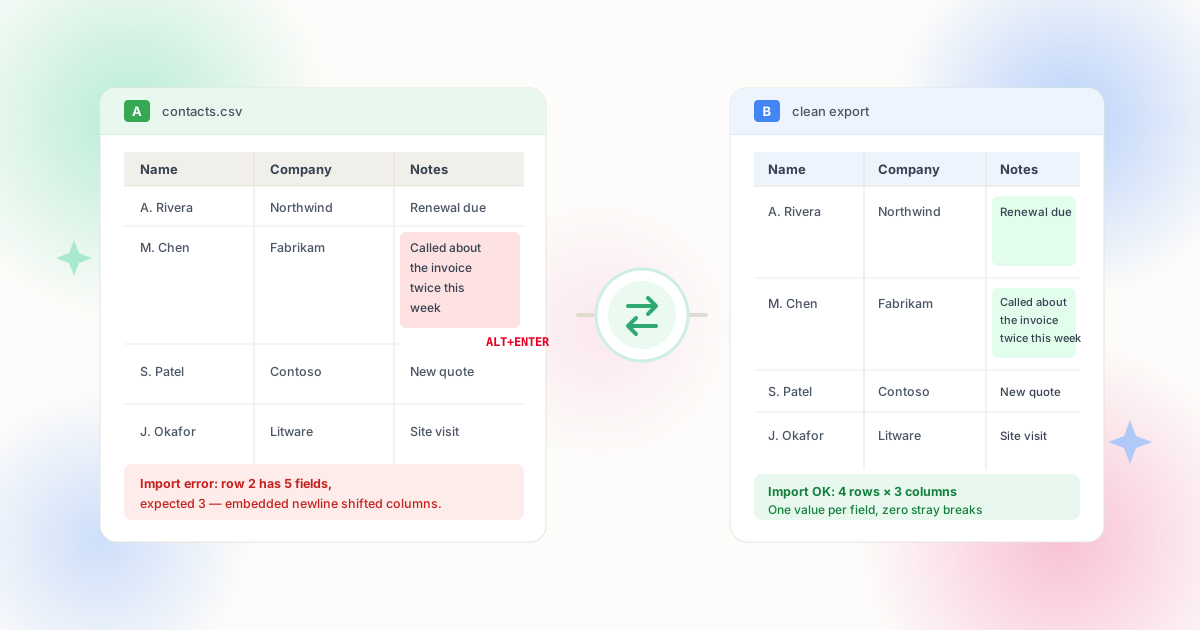
Why Line Breaks Break CSV Files
CSV format separates records with newlines. That single fact means any newline living inside a value collides with the format's own record delimiter — and the damage depends entirely on whether your file quotes its fields correctly.
The RFC 4180 specification for comma-separated values allows a line break inside a field only when that field is wrapped in double quotes. Correct parsers — Python's csv module, Excel, most ETL tools — honor the quotes and treat the newline as data. Naive parsers split on every newline they see, which turns one record into two, shifts every column after the break, and produces a row count that no longer matches your source.
Even when the parser is correct, downstream systems often are not. Databases with fixed column counts, CRM importers expecting one value per field, and analytics pipelines that validate row shapes will reject or silently mangle records with embedded breaks. The practical conventions around CSV have converged on a simple rule: structure fields stay single-line, and only genuine free-text columns carry breaks — if the consumer supports quoting at all.
Alt+Enter in Cells
The most common source: someone formats a note or address across two lines inside a cell, then exports without realizing the break travels with the value.
Form & Survey Exports
Long-answer fields, addresses, and comment boxes export with the exact line structure users typed — including accidental wraps mid-word.
PDF Conversions
Tables converted from PDF inherit printed line breaks inside every wrapped cell, plus margin returns that were never data at all.
Pasted Email Data
Contact lists copied from signature blocks and mail threads bring plain-text line structure into spreadsheet columns before export.
Diagnose First: Symptoms of Embedded Breaks
Before choosing a fix, confirm the break is actually the culprit. These symptoms appear in predictable combinations:
| Symptom | What It Means | First Move |
|---|---|---|
| Parser row count exceeds spreadsheet rows | Newlines are splitting records into extra rows | Find and flatten the cells containing breaks |
| Columns shift from a certain row onward | An unquoted newline injected a phantom record | Strip breaks, then re-export with quoting enabled |
| One field shows double spacing after import | Break was replaced with nothing instead of a space | Replace with a space to keep word boundaries |
| Import error: too many or too few fields | Row shape validation failed on a split record | Inspect quoted fields near the reported row number |
Open the suspect file in a plain text editor first — Notepad++ shows the raw structure, and a search for blank lines inside quoted values confirms the problem in seconds. Our Notepad++ regex guide includes the exact patterns for inspecting and fixing raw CSV text without a spreadsheet in the loop.
Method Comparison: Removing Breaks from Data
Each tool can flatten your data; they differ in safety, scale, and whether they respect the quoting rules:
| Method | How | Scale | Quoting Safe? |
|---|---|---|---|
| Excel SUBSTITUTE / CLEAN | =SUBSTITUTE(A1, CHAR(10), " ") per column | Thousands of rows | Yes — operates on cell values, not raw text |
| Google Sheets | SUBSTITUTE with CHAR(10), or REGEXREPLACE for patterns | Thousands of rows | Yes — cell-level operations |
| Power Query | Replace Values on the column, or Text.Replace | Millions of rows | Yes — structured transforms |
| Python csv module | Parse, flatten values, re-emit with quoting | Any size, scripted | Yes — RFC-aware by design |
| Regex on raw text | Replace \r?\n only inside quotes | Small files | Risky — pattern must not cross field boundaries |
| Browser cleaner | Paste pasted values, flatten, paste back | Single fields and blocks | Yes — you see exactly what changed |
The full spreadsheet-side walkthrough — including Power Query steps and the Google Sheets regex variants — lives in our Excel and Google Sheets guide. For scripted pipelines, the Python cleanup guide shows how to parse, flatten, and re-write CSVs with quoting handled correctly.
When Newlines Are Legal: The RFC 4180 Rule
Not every embedded newline is an error. RFC 4180 states plainly that fields containing line breaks, commas, or double quotes must be enclosed in double quotes, and that a CRLF sequence inside those quotes is part of the data. A notes column like this is perfectly valid:
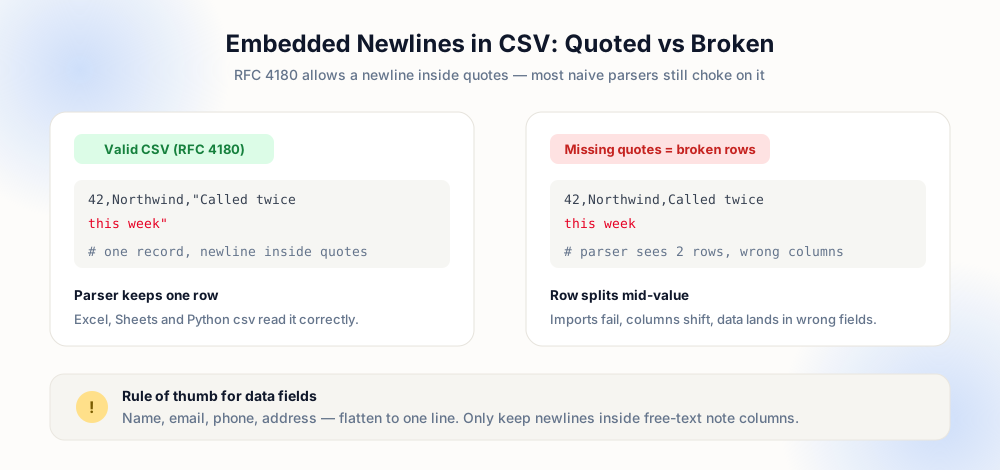
42,Northwind,"Called twice
this week, left voicemail"
43,Contoso,"Renewal due Friday"
42,Northwind,Called twice
this week, left voicemail
43,Contoso,Renewal due Friday
The decision therefore comes down to the destination. Data warehouses and strict importers prefer every field single-line. Human-readable exports and note columns can keep breaks if the consumer quotes correctly. When in doubt, flatten — no downstream system has ever rejected a note because its lines were joined with spaces.
The Safe Cleanup Workflow
Run this sequence on any CSV that fails an import, and it will either fix the file or tell you precisely where the problem lives:
- Back up the original. Every step below rewrites data — keep the untouched file until the new one passes validation.
- Record the baseline. Note the row count your spreadsheet shows and the count your parser reports. The gap is your embedded-newline damage.
- Classify columns. Names, emails, phones, IDs, dates, amounts → flatten all breaks. Notes, descriptions, addresses → flatten unless the destination supports quoted newlines.
- Flatten with a space, not nothing. Replacing with an empty string merges words — "twice\nthis" becomes "twicethis". A single space preserves word boundaries everywhere.
- Re-export and re-validate. Paste as values before export so formulas do not travel with the data, then confirm parser rows equal spreadsheet rows.
For address columns specifically, note that postal conventions sometimes use intentional line splits. Flatten them for import, then re-split downstream using the address-parsing logic of your target system — the same principle our email cleanup guide applies to signature blocks.
Worked Example: Cleaning a Real Export
A support team exports 4,000 rows from their ticketing tool and feeds the file into a CRM importer. The import reports 4,187 records — 187 more than the spreadsheet shows — and every row after the first mismatch has shifted columns. Here is the recovery, end to end, with the reasoning at each step.
Step 1 — Confirm the diagnosis. The row-count gap of 187 is the first clue: records are being split, not corrupted. Opening the file in a text editor shows the split points inside quoted fields in the "Customer Notes" column — values where agents pressed Shift+Enter mid-message. The structure columns around them are intact, which means the quoting is valid and only the cell content needs to change.
Step 2 — Classify the columns. Ticket IDs, emails, and plan names are structured: every break there would be a bug. Customer Notes and internal descriptions are free text. The CRM's documentation says it imports quoted newlines correctly for long-text fields but validates single-line values for everything else — so the notes column could legally keep its breaks. The team flattens it anyway, because their downstream reporting tool splits lines when generating macros. When the destination is a chain of unknown consumers, flattening the free text too removes the last variable.
Step 3 — Flatten with the right separator. In Excel, a helper column runs =SUBSTITUTE(B2, CHAR(10), " ") across the notes field, and a second pass with =CLEAN() sweeps any remaining control characters. Replacing with a space rather than nothing keeps messages readable — "please call\nMonday" becomes "please call Monday", not "please callMonday". The results are pasted as values so the export does not carry formulas, and the original file stays untouched as a rollback point.
Step 4 — Re-validate. The cleaned file is exported with quoting enabled and re-checked: parser rows now equal spreadsheet rows — 4,000 and 4,000. A spot check of five previously split tickets shows single-line notes and correctly aligned columns. Only then does the CRM import run. The entire cycle takes minutes, and the baseline row count from step 1 is what turns a mysterious import failure into a solvable, measurable problem. For the same exercise scripted in Python, see the Python cleanup guide.
Pre-Import Checklist
- Row counts match between your spreadsheet view and your parser — this is the single most reliable embedded-break detector.
- Structured columns are single-line — names, emails, phone numbers, IDs, and every field a system will key on.
- Free-text columns are intentional — breaks you keep should be ones you placed, not ones inherited from a paste.
- Words are not fused — every join used a space, so no value contains a merged word from a careless replace.
- Quoting is enabled on export — if you intentionally keep any break, the file must be written with RFC 4180 quoting.
Frequently Asked Questions
How do I remove line breaks from a CSV file?
=SUBSTITUTE(A1, CHAR(10), " ") across affected columns — or =CLEAN(A1) to strip all control characters. Paste the results as values and export again. For files that must not touch a spreadsheet, flatten quoted fields with a parser-aware tool or the Python csv module.Why do line breaks break my CSV import?
Should I keep line breaks in my CSV data?
What is the difference between CLEAN and SUBSTITUTE in Excel?
CLEAN removes all low ASCII control characters at once, including tabs and other non-printables — fast, but indiscriminate. SUBSTITUTE targets exactly what you specify — CHAR(10) for line feeds or CHAR(13) for carriage returns — so you control whether breaks become spaces or disappear entirely. Our spreadsheet guide covers both plus Power Query.How do I check a CSV for embedded line breaks quickly?
=IF(ISNUMBER(SEARCH(CHAR(10), A1)), "BREAK", "") flags every affected cell instantly.Explore Related Tools & Tutorials
Remove Line Breaks in Excel & Google Sheets →
CLEAN, SUBSTITUTE with CHAR(10), Power Query, and REGEXREPLACE in full detail.
GuideRemove Line Breaks in Python →
Scripted CSV cleanup that respects quoting — parse, flatten, re-emit.
ToolReplace Line Breaks with Space →
The exact operation column cleanup needs — see the result before you paste.
GuideBatch Remove Line Breaks →
Dozens of exports at once — delimiter batching and shell automation.