
How to Remove Line Breaks from Email Text (Outlook, Gmail & Signatures)
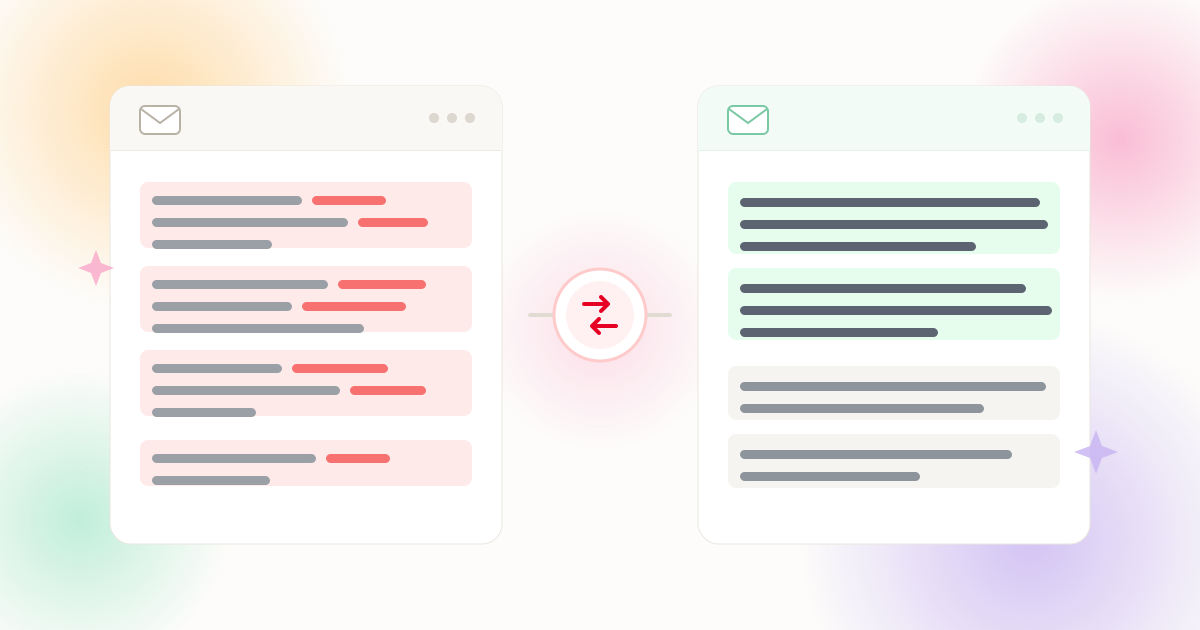
A message that looks tidy in your inbox turns into a ragged twelve-line mess the moment you paste it into a CRM record, a newsletter editor, or a contract. Here is exactly why email injects hard returns — and every practical way to remove them in Outlook, Gmail, Word, and the browser.
Why Email Text Is Full of Hard Line Breaks
Email was designed in an era of fixed-width terminals. The plain-text tradition still quietly governs how your messages are stored, quoted, forwarded, and copied — which is why the text you paste out of an email rarely matches the tidy block you saw on screen.
Three forces work together. First, the 72–78 character convention: plain-text messages were historically wrapped near terminal width so every line survived a 80-column display, a dot-matrix printer, or an early mobile client. Second, mail client behaviour: Outlook treats every Enter as a full paragraph mark, Gmail preserves whatever breaks a plain-text sender used, and forwarded chains stack those breaks on top of each other. Third, reply quoting: when someone replies, the previous message is re-appended line by line with a > prefix, freezing the old line structure into your thread forever.
The result is predictable. Copy a paragraph out of Outlook and you get a stair-stepped fragment where every visual line becomes its own paragraph. Copy an address block and you get five separate "paragraphs" that should have been one field. Paste any of it into a CRM, a newsletter builder, or a form — and the breaks multiply into layout problems you then have to fix by hand.
CRM & Lead Records
Pasting a pasted conversation into Salesforce, HubSpot, or a ticket note splits one note into fifteen rows of wrapped text, and embedded newlines can break CSV field boundaries entirely.
Newsletter Builders
Editors such as Mailchimp and Brevo convert each newline into a <br> tag, so a message copied from Outlook ships with double-spaced, ragged body copy in every subscriber's inbox.
Signatures & Disclaimers
Fixed-width signature blocks and legal disclaimers carry a break after every short line. Once pasted into an HTML template, those breaks render as awkward empty gaps between each element.
Support Replies
Agents reuse reply templates by copying previous messages — dragging old quoted lines, headers, and wrapped paragraphs into every new response they send.
Email Cleanup Methods at a Glance
Before diving into any single client, here is the full landscape. Each method trades a little speed against how much control you keep over paragraph structure:
| Method | Where It Works | Speed | Paragraphs Safe? | Best For |
|---|---|---|---|---|
| Outlook Find & Replace^p and ^l codes | Outlook desktop (Windows & Mac) | Fast — 10 seconds | Only if you target single marks manually | Quick fixes on one or two messages |
| Word MiddlemanPaste → replace → copy back | Any mail client, via Microsoft Word | Medium — under a minute | Yes, with wildcard rules | Long, heavily wrapped messages |
| Browser CleanerPaste into tool, pick a mode | Gmail, webmail, Outlook on the web | Instant — one paste | Yes — Preserve Paragraphs mode | Everyday cleanup for all clients |
| Google Docs RegexFind & Replace with regular expression | Gmail content staged in Google Docs | Fast — 20 seconds | Yes, if you search one break at a time | Users without Outlook or Word |
| Batch & Macro CleanupTemplates, macros, scripts | Helpdesks, CRM imports, mailing lists | Setup once, then automatic | Yes — rules run per template | Teams sending at volume |
Method 1: Remove Line Breaks in Outlook (Find & Replace)
Outlook desktop ships with the fastest built-in fix: the Find and Replace dialog understands Outlook's own control codes. Open a new message or edit the body of an existing one, select the affected text with Ctrl + A, then press Ctrl + H to open Replace.
- In Find what, type
^p— Outlook's code for a paragraph mark (the Enter key in the message body). - In Replace with, type a single space. Choose Replace All. Every hard return becomes a normal word space, and sentences rejoin exactly as they read on screen.
- Run a second pass with
^lif the message contains manual line breaks (Shift + Enter). These are separate characters, and a single pass will not catch both. - To preserve real paragraphs, replace the double mark
^p^pwith a placeholder such as###first, remove the remaining single^pmarks, then convert###back to^p^p.
The placeholder step is what separates a clean result from a collapsed one. Without it, every paragraph boundary in a long proposal or newsletter disappears along with the unwanted wraps — leaving one wall of text. Outlook on the web and the mobile apps do not include Find & Replace at all, so for those you either compose in the desktop client, stage the text in Word or Google Docs, or clean it in the browser before pasting. For the complete caret-code reference, see our guide to removing line breaks in Microsoft Word, where the same ^p and ^l logic applies.
Method 2: Clean Line Breaks in Gmail (No Built-in Replace)
Gmail's compose window has no Find and Replace for the message body, and the "Remove formatting" button only strips fonts and colors — it leaves every newline untouched. The practical workaround is to stage your text somewhere that does support replacement, then paste the clean version back.
- Google Docs route: Paste the message into a blank Doc, press
Ctrl + H, enable Regular expression, search for\nand replace with a space. For paragraph-aware cleanup, search(?<!\n)\n(?!\n)so only single breaks inside sentences are removed. - Browser cleaner route: Copy the messy message, paste it into our Line Break Remover, choose Preserve Paragraphs, then paste the result straight back into Gmail. Nothing is uploaded — the whole exchange happens inside your browser.
- Prevention route: When the reply is short and simple, write it directly in the compose box instead of copying an earlier draft. Breaks you never introduce never need removing.
The same staging approach works for Outlook on the web, Yahoo Mail, Apple Mail, and any helpdesk interface that lacks replacement tools. Once your text is clean, paste it first and proofread second — spacing errors are invisible until the text is back in the editor where wrapping happens again.
Visual Walkthrough: Before and After
Here is a typical reply copied out of a plain-text email, with every visual line stored as its own paragraph, followed by the result after Preserve Paragraphs cleanup:
Hi Sarah,

Please find the updated
proposal attached. We can
start the onboarding
process on Monday if the
signed copy reaches us
before noon.

Best regards,
Michael Chen
Operations Lead
Hi Sarah,

Please find the updated proposal attached. We can start the onboarding process on Monday if the signed copy reaches us before noon.

Best regards,
Michael Chen
Operations Lead
The mid-sentence breaks after "updated", "the", and "the" are gone, while the greeting, the sign-off, and the sender details stay on their own lines. That balance is exactly what you want for CRM notes, proposals, and newsletter bodies.
Handling Quoted Replies, Headers & Forward Chains
Quoted history is the hardest part of email cleanup because each reply in the thread re-persists the line structure of everything above it. Three artifacts show up repeatedly: the > quote prefix on every historical line, the "On Tuesday, at 3 PM, Sarah wrote:" separator, and forwarded-message headers such as From / Sent / To / Subject stacked in fixed order.
The cleanest strategy is subtraction before formatting: delete the parts of the thread you are not responding to, then clean what remains. In Outlook, a targeted replace of ^p^> with ^p strips quote markers while keeping your own paragraph rhythm. In a regex-capable editor such as Notepad++, the pattern ^>.*\R removes entire quoted lines. If you must keep the quote for context, clean it once and reuse the cleaned version as a saved snippet so the breaks do not keep re-entering your replies.
Forwarded attachments deserve the same treatment. Text lifted from a scanned or PDF attachment arrives with margin returns baked in — for that specific case, follow How to Clean Up Text Copied from a PDF, which covers hyphen stitching and punctuation-aware joining.
Signatures & HTML Emails: Where Newlines Become Tags
In HTML, a newline is not automatically a line break — browsers collapse whitespace unless a tag or CSS rule says otherwise. Mail clients, however, are aggressive translators: when you paste plain text into an HTML composer, most clients convert every newline into <br> and every double newline into a new paragraph block. That is why a signature written as six short lines renders with six hard breaks even when you wanted a compact two-line block.
The fix depends on where the signature lives. For an HTML signature stored in Outlook or Gmail settings, clean the source text to the exact line structure you want — typically name and title on line one, contact details on line two — and re-save it. For signature disclaimers pasted into newsletter templates, remove all internal breaks, then re-insert a break only at the points where you genuinely want a new visual line. Web authors controlling the CSS can also rely on the white-space property to let text wrap naturally instead of honoring every stored newline.
| Scenario | Recommended Mode | What It Preserves | Why |
|---|---|---|---|
| Reply or proposal body | Preserve Paragraphs | Greeting, paragraphs, sign-off | Reads like normal correspondence, without margin wraps |
| Signature or disclaimer block | Replace with Space | Your chosen single line | Contact fields must not break inside CRM or HTML templates |
| Address or phone field | Replace with Space | Commas and internal spacing | Form validators and CSV columns expect one line per value |
| Text copied from an emailed PDF | Smart PDF Mode | True sentences and paragraphs | Punctuation heuristics rejoin margin wraps and split words |
| Link, tracking code, or token string | Remove All (Direct Fuse) | Zero spaces inserted | URLs and UTM strings must remain unbroken |
Bulk Email Cleanup: Macros, Templates & Imports
If you handle email at volume, cleaning one message at a time does not scale. The efficient pattern is to clean once and store the result: keep a master copy of every reply template, signature, and canned response in already-normalized form, so each new message starts clean instead of inheriting breaks from the last copy-paste.
Two high-impact places to apply this. First, helpdesk macros — Zendesk, Freshdesk, and similar systems insert stored text verbatim; if the stored text carries wrapped lines, every agent inherits them. Second, CRM and CSV imports — embedded newlines inside a field force the importer to quote that field, and some tools mishandle the quoting, silently shifting columns. Flatten those fields before export. Our batch removal guide walks through processing dozens of documents at once, and the Batch Mode tool handles multiple pasted blocks in a single session.
Teams using mail merge should treat address and title fields as strictly single-line data, while letter bodies can keep their paragraphs. A quick pre-merge pass through Preserve Paragraphs satisfies both requirements without manual editing.
Pre-Send Checklist
- Decide the destination first. A CRM note, a newsletter body, and a signature each call for a different cleaning mode — see the decision table above before you replace anything.
- Never run a blanket Replace All on a long message without protecting paragraph marks first; use the
^p^pplaceholder trick or Preserve Paragraphs mode. - Clean quoted history separately from your own reply, so the two blocks can keep different formatting.
- Re-read spacing after cleaning. Collapsed breaks often leave double spaces behind — one extra proofread catches them instantly.
- Save normalized templates for signatures and canned replies so the same wraps never come back.
Frequently Asked Questions
Why does my email signature keep breaking into new lines?
Can I remove line breaks in Outlook on the web or the mobile app?
Will removing line breaks hurt deliverability or trigger spam filters?
How do I keep paragraphs but remove the ugly mid-sentence wraps?
What is the difference between ^p and ^l in Outlook?
^p is a paragraph mark — the result of pressing Enter. ^l is a manual line break — the result of Shift + Enter. They are different characters, so a replacement pass on one will not catch the other. Run both, or use a mode that handles every newline type at once. Our Line Breaks vs. Paragraph Breaks explainer covers the distinction in depth.Explore Related Tools & Tutorials
Line Break Remover →
Paste any email copy, pick a mode, and get clean text back instantly — entirely in your browser.
GuideRemove Line Breaks in Microsoft Word →
Master the same caret codes Outlook uses, plus the placeholder method and macros.
ExplainerLine Breaks vs. Paragraph Breaks →
Understand \n versus \n\n and why the difference decides your cleaning mode.
ToolReplace Line Breaks with Space →
Ideal for signatures, address fields, and any single-line data copied from mail.