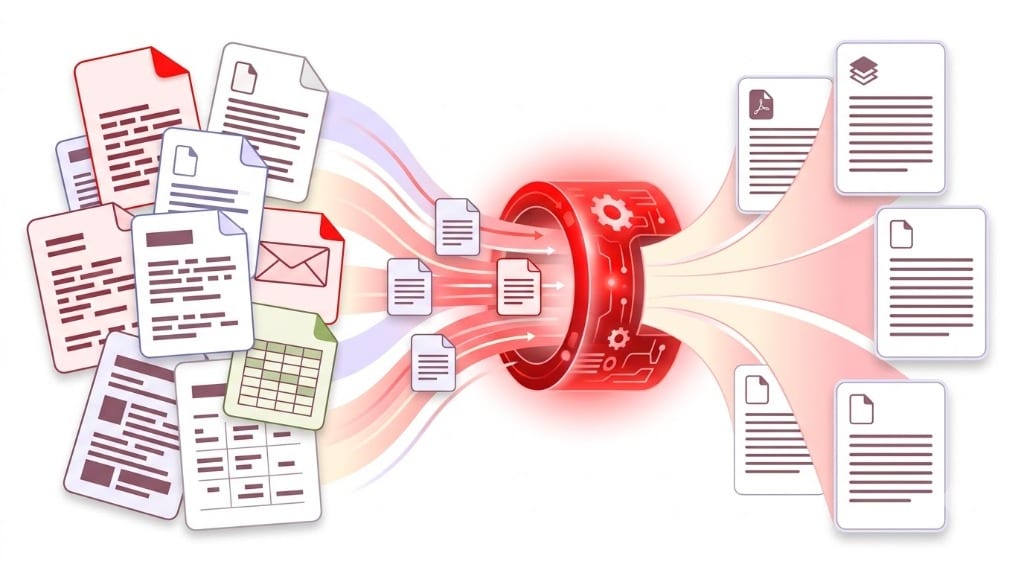
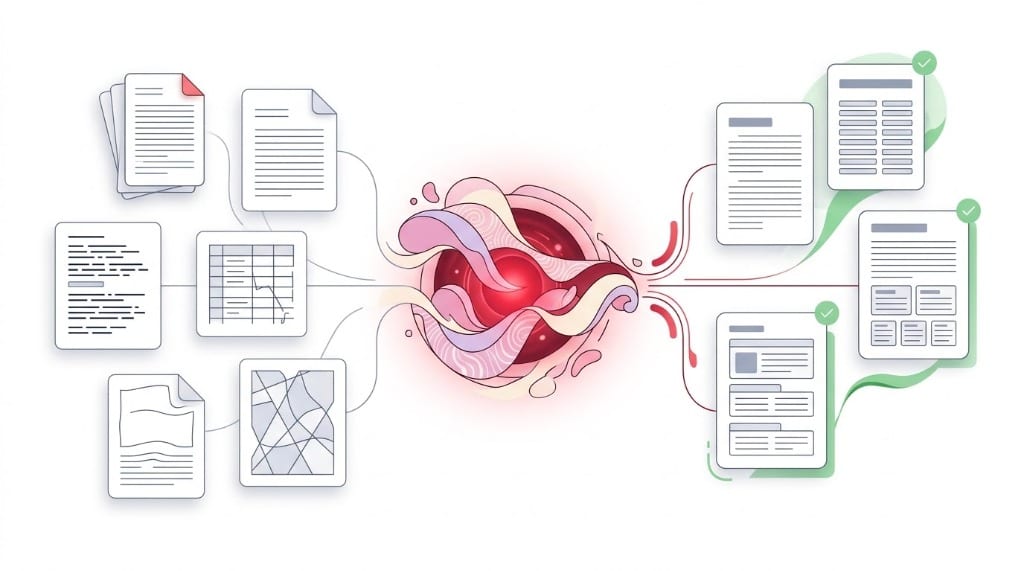
✦ 100% Free · Client-Side · Private

Remove Line Breaks from any text, instantly

Clean up text from PDFs, Word docs, emails & scanned documents. Choose exactly what happens to every line break. Your text never leaves your browser.

Try It Free →No sign-up · No uploads
Your text is never uploaded to a server · Nothing is stored · 100% private
Mode:
Batch ModeNew

Separate multiple documents with --- on its own line

Advanced Cleanup Options
Chars
0
Words
0
Lines
0
Chars
0
Words
0
Lines
0
Saved
—
Why Choose This Tool

More powerful than any competitor

Every feature your competitors do not have — batch mode, smart PDF detection, diff view, and eight one-click cleanup toggles.

🧠

Smart PDF Detection

Detects true paragraph endings (., !, ?, :) vs. mid-sentence wrapped lines. Removes only the wrapped breaks — not the real ones.

📦

Batch Mode

Competitors cannot do this. Paste multiple documents separated by --- and clean them all at once.

🔍

Diff View

See exactly what changed, highlighted inline. Verify no important content was accidentally removed before you copy.

📋

Re-Editable Input

Your original text stays in the box after processing. Tweak settings and reprocess without re-pasting — a real workflow, not a one-shot tool.

🛡️

100% Private

Every character stays in your browser. No servers, no uploads, no logs. Safe for confidential contracts, personal emails, and proprietary docs.

⚡

8 Cleanup Toggles

Extra blank lines, tabs, Unicode whitespace, smart quotes, list-aware mode, HTML stripping — all stackable with any line-break mode.

How it works

Three steps. No account needed.

1

Paste your text

Copy text from a PDF, Word doc, email, or any source and paste it into the input box.

2

Choose your mode

Select how line breaks should be handled. Enable advanced cleanup toggles for extra control.

3

Copy or download

Click Copy to Clipboard or Download .txt. Done — ready to paste anywhere.

Technical Guide & Overview

What Is a Line Break — And Why Do You Need a Line Break Remover?

A line break is an invisible control character in digital typography that instructs a text rendering engine to terminate the current line and begin a new one. In everyday writing, line breaks create natural paragraphs and deliberate pauses. However, when you copy text from PDFs, word processors, email clients, or spreadsheets, those invisible characters frequently turn into a formatting disaster: short, jagged lines that shatter sentence flow, break layout columns, and ruin readability.

That is where an automated line break remover and new line remover becomes indispensable. When you need to delete line breaks, remove new lines from copied clipboard text, or clean up an OCR scan, using a dedicated remove line breaks online tool restores smooth, contiguous sentences in a single click without destroying your intentional paragraph structure.

⚡ Visual Demonstration: Before vs. After Removing Line Breaks

See how broken, fragmented PDF text is instantly reconstructed into clean paragraphs:
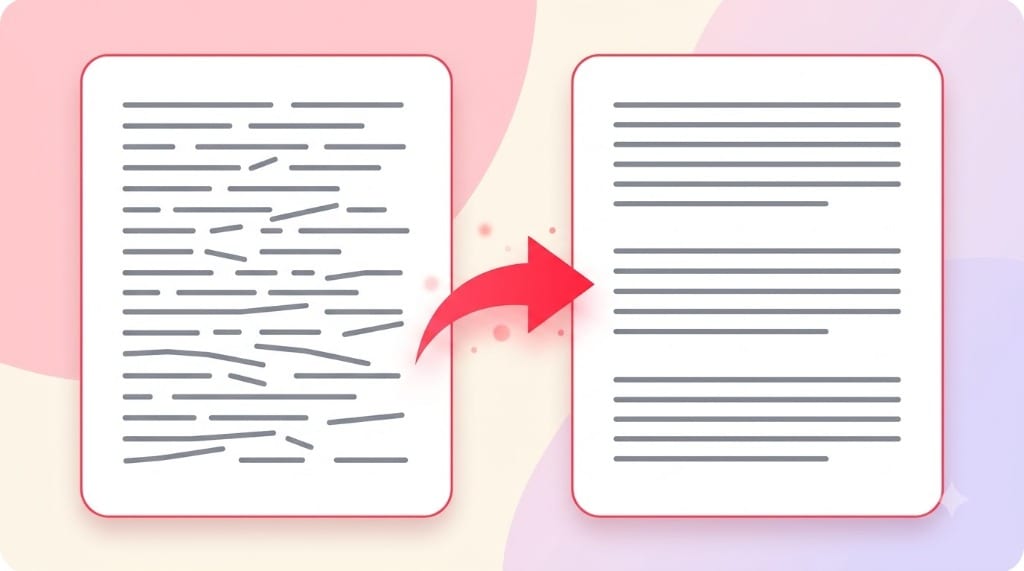
Visual demonstration of removing line breaks showing fragmented document converted into clean paragraph text
📊Visual Proof: Unwanted hard carriage returns and line wrap fragments are stitched back into clean, flowing paragraphs without losing intentional structure.
❌ Raw Input (Broken Text with Hard Breaks)5 lines · Ragged line wrapping
The rapid brown fox jumps
over the sluggish hound. This
paragraph was copied from a
two-column PDF document with
hard breaks at every edge.
✅ Clean Output (After Line Break Remover)1 smooth paragraph · Flow preserved
The rapid brown fox jumps over the sluggish hound. This paragraph was copied from a two-column PDF document with hard breaks at every edge.
💡
Smart Paragraph Retention: Notice how our Preserve Paragraphs mode intelligently eliminates single hard breaks inside sentences while keeping double breaks intact between paragraphs. Learn more in our deep-dive guide: Line Breaks vs. Paragraph Breaks Explained →

🔍 The Technical Difference: Hard Breaks vs. Soft Breaks

To understand why text breaks, you need to understand how computers represent lines. There are two fundamentally different types of breaks:

  • Hard Line Breaks (Explicit Break): Created when someone presses Enter (or Shift+Enter in word processors). In digital storage, this inserts an explicit newline code sequence into the file stream.
  • Soft Line Breaks (Visual Word-Wrapping): Created automatically by your web browser or text editor when a sentence reaches the physical margin of the screen. No invisible break character is added to the raw text; it is purely visual.

When PDF creators compile a document, they convert soft visual wrapping into permanent hard line breaks to guarantee pixel-perfect printing across every printer. When you paste that text elsewhere, those hard breaks persist. Learn more about the underlying mechanics in the official Wikipedia Newline Reference ↗ and the Unicode Standard Annex #14 Line Breaking Properties ↗.

ℹ️
Operating System Variance & Control Characters: Windows systems terminate lines with CRLF (\r\n, Carriage Return + Line Feed), while Unix, macOS, and Linux use standard LF (\n, Line Feed). If you need to remove line feed characters, remove end of line markers, or cleanly remove newlines across cross-platform text files, our browser-based engine normalizes and handles all system-level newline variants automatically.

Step-by-Step Tutorial

How to Remove Line Breaks Online — 3 Simple Steps

Cleaning formatted text does not require installing bulky software or memorizing complex regular expressions. With our free remove line breaks online tool, the entire process takes less than 3 seconds:

1

Paste Your Text into the Input Box

Copy your fragmented text from any PDF document, Word file, email client, OCR software, or database export. Paste it directly into the input area at the top of this page. You can paste a single sentence or a 200-page manuscript — there is no arbitrary character limit.

2

Select Your Line Break Removal Mode

Choose the mode that fits your document structure. Most users select Preserve Paragraphs (Smart Mode) to retain paragraph breaks. If you want to completely delete new line characters, remove breaklines from copied text, or make all line breaks remove into single-line strings, select Remove All or Replace with Space. Toggle optional features like Collapse extra blank lines or Trim whitespace as needed.

3

Copy Cleaned Text or Download as .txt

The cleaned text is processed instantly in real-time as you type or toggle options. Click the green Copy to Clipboard button to immediately paste into your destination app, or click Download .txt to save the file locally.

Feature Deep-Dive & Comparison

4 Powerful Modes to Remove Line Breaks from Text

Different documents require different cleaning strategies. A simple blanket removal can turn a multi-page essay into a single unreadable wall of text. Our remove line breaks tool provides four distinct algorithmic modes:

⭐ Mode 1: Preserve Paragraphs (Recommended)

Preserve Paragraphs (Smart Mode)

This is the industry standard for document cleanup. It detects single line breaks (which occur mid-sentence due to column widths) and replaces them with a single space. Meanwhile, it detects double line breaks (empty lines between paragraphs) and preserves them intact.

Best suited for: PDF eBooks, academic essays, Word documents, blog drafts, and general text editing. Explore the dedicated Preserve Paragraphs Tool →

🔬 Mode 2: Smart PDF Mode

Smart PDF Mode (Sentence Boundary Analysis)

Two-column research papers and scanned documents often do not have double line breaks between paragraphs; they only have single breaks with indented first lines. Smart PDF Mode inspects the punctuation at the end of each line (such as periods, question marks, and colons) and capitalization on the next line to accurately detect true paragraph terminations.

Best suited for: Scientific journal articles (IEEE, PubMed, JSTOR), legal briefs, and multi-column publications. Try the Smart PDF Line Break Remover →

🚀 Mode 3: Remove All Line Breaks

Remove All Line Breaks (Single Line)

Operating as an aggressive new line remover, this mode strips every single newline character (\n and \r) across the entire text without exception. It allows you to quickly delete line breaks and delete new lines so the entire input collapses into one continuous, unified string of text.

Best suited for: Combining database log entries, preparing text for single-line search fields, cleaning barcode strings, or formatting prompt inputs for AI models. Use the Remove All Breaks Tool →

🔄 Mode 4: Replace with Space or Delimiter

Replace Line Breaks with Space or Custom Delimiters

Instead of simply choosing to delete line breaks entirely, this mode substitutes every break with a single space, comma, semicolon, tab, or custom separator. This prevents adjacent words from being accidentally conjoined when breaking lines do not have trailing spaces.

Best suited for: Preparing tabular CSV records, converting vertical lists into comma-separated values, and data manipulation. See the Replace Line Breaks with Space Tool →

Line break remover modes overview illustrating PDF, Word, Email, and Spreadsheet conversion workflows
🛠️Complete Feature Suite: Choose from 4 specialized removal algorithms tailored for PDFs, Word files, emails, tabular spreadsheets, and batch jobs.

Comprehensive Mode Comparison Matrix

Detailed Breakdown
👉 Mobile Users: Swipe horizontally on table to view full comparison columns →
Removal ModePrimary Transformation LogicParagraphs Kept?Prevents Word Merge?Recommended Use Case
⭐ Preserve Paragraphs
Smart Double-Newline
Removes single \n; preserves double \n\n intact.✅ Yes (Full)✅ Yes (Adds space)PDFs, Microsoft Word documents, email threads, essays.
🔬 Smart PDF Mode
Heuristic Sentence Scan
Inspects terminal punctuation (. ! ? :) before joining lines.✅ Yes (Smart)✅ YesTwo-column academic papers, legal transcripts, OCR scans.
🚀 Remove All
Absolute Flattening
Strips all \n and \r characters without replacement.❌ No (Single block)⚠️ Depends on spacesCode snippets, regex strings, terminal log consolidation.
🔄 Replace with Space
Delimiter Replacement
Replaces each line break with a space character or custom delimiter.❌ No✅ Yes (100% space)CSV prep, turning vertical lists into comma-separated lists.
Industry Applications

When and Where to Remove Break Lines: Common Real-World Scenarios

Removing line breaks from text is an everyday chore across virtually every white-collar profession, from digital marketing to academic research. Here is how specialized workflows benefit from our tool:

📄Document Cleanup

1. How to Remove Line Breaks from PDF Documents

PDF is a print-oriented display format governed by the ISO 32000 standard. Inside a PDF, sentences do not flow dynamically; individual characters are placed at static Cartesian coordinates (x, y) using PDF operators like Tj and TJ. When you highlight and copy text from Adobe Acrobat, Preview, or Chrome, the viewer synthesizes a hard break at the end of every line.

Using our line break remover, you can paste an entire chapter, select Preserve Paragraphs, and eliminate every unwanted carriage return in a split second.

📝Word Processing

2. How to Remove Line Breaks in Word & Google Docs

In Microsoft Word, there is a crucial distinction between a paragraph break (Enter, represented by ^p) and a manual line break (Shift+Enter, represented by ^l). Documents imported from web scrapers or legacy RTF files often contain thousands of manual breaks that ruin text justify and indent settings.

Instead of running complex Find & Replace macros in Word, paste your document here, click once, and paste clean text back. Read the full step-by-step tutorial:

📧Email & Comms

3. Fixing Hard-Wrapped Email Threads & Newsletters

Legacy email protocols like IETF RFC 5322 ↗ historically mandate that plaintext email lines not exceed 78 characters. Email clients like Outlook, Thunderbird, and Apple Mail routinely insert hard carriage returns at column 72.

When an email is forwarded repeatedly, the text looks like jagged free-verse poetry. Pasting into this tool allows you to easily remove new lines and remove breaklines, seamlessly stitching lines back together into professional paragraphs ready for customer correspondence.

🌐Content Management

4. Remove Line Breaks Text Formatting for CMS (WordPress, Webflow)

Modern WYSIWYG editors (Gutenberg in WordPress, Webflow rich text, Ghost, and Notion) interpret every hard newline as a separate block container or <br> tag. If you paste text copied from a draft email or PDF, you end up with hundreds of disconnected mini-blocks that break your website's responsive mobile layouts.

Always run remove line breaks text formatting on your copy before publishing to preserve your theme's intended typographic hierarchy.

📊Data Engineering

5. Cleaning Data in Excel & Google Sheets

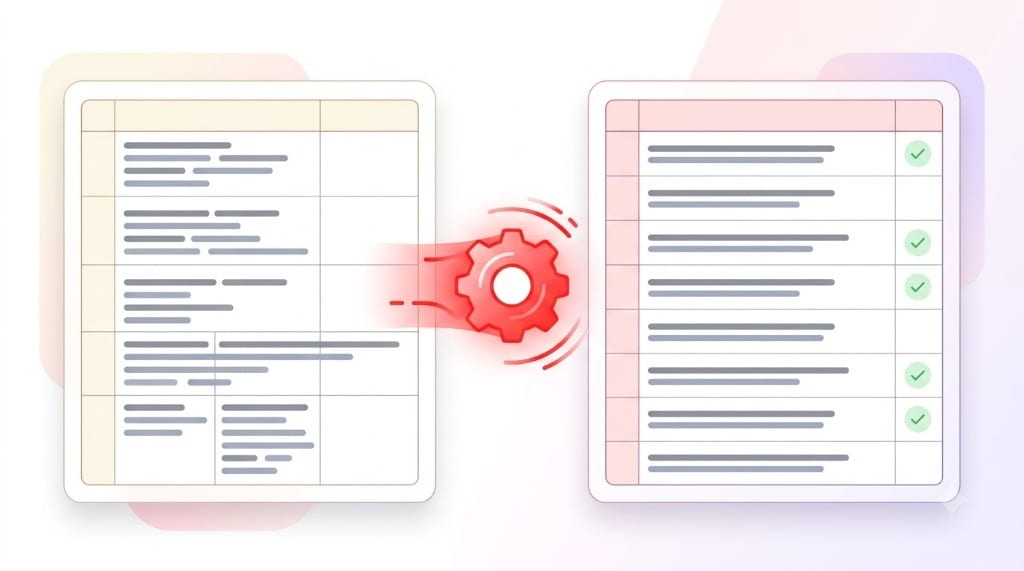
Multiline text cells created with Alt+Enter (in Excel) or Ctrl+Enter (in Google Sheets) cause severe corruption when exported to CSV. A single row splits across multiple lines, causing database import errors and broken column mapping. When exporting large tables, our tool makes it effortless to remove line feed characters and remove end of line formatting issues before database import.

Spreadsheet cleanup removing Alt Enter line breaks in Excel and Google Sheets cells for clean CSV exports
📈Spreadsheet Normalization: Strips internal cell line breaks (Alt+Enter) to prevent CSV row splitting and database mapping errors.

Use our Replace with Space mode or check our complete tutorial: Remove Line Breaks in Excel & Google Sheets →

📁Bulk Operations

6. Multi-Document Batch Line Break Removal

Need to clean dozens of text files or articles at once? Instead of re-running individual snippets, our high-speed line breaks remover includes a built-in Batch Mode. Separate individual documents with --- on a blank line, and clean all files in a single pass.

Batch line break removal processing multiple documents, PDFs, and chapters simultaneously
⚡Batch Processing Engine: Clean dozens of chapters or text files simultaneously in a single pass using simple triple-dash (---) separators.
Feature Comparison

Online Line Break Remover vs. Word, Notepad & Custom Scripts

Why use an online tool when text editors have Find & Replace? While manual methods can delete new lines, they lack context awareness and often obliterate legitimate paragraph spacing. Here is how our dedicated line breaks remover compares against standard desktop software:

Performance & Usability Benchmark

Head-to-Head
👉 Mobile Users: Swipe horizontally on table to view all comparison criteria →
Feature / CapabilityRemoveLineBreaksOnlineMicrosoft WordWindows NotepadPython / Regex
One-Click Workflow✅ 1 Click (Instant)❌ 4–6 steps❌ Manual find❌ Write & run code
Keep Paragraph Structure✅ Automated & Smart⚠️ Multi-step regex (^p^p)❌ Destroys paragraphs⚠️ Complex lookbehind
Real-Time Diff Highlighting✅ Built-in Visual Diff❌ Not available❌ Not available❌ Terminal diff only
Batch Processing✅ Multi-doc separator❌ One doc at a time❌ No batch✅ Yes (File loop)
Privacy & Security🔒 100% Client-Side🔒 Local app🔒 Local app🔒 Local execution
Cost & Installation🆓 100% Free / Zero install💳 Paid Office 365🆓 Free on Windows⚙️ Requires runtime
Utility Toolbox

8 Built-In Text Formatting Tools Beyond Basic Line Break Removal

Our online suite goes far beyond stripping newline characters. Every option is designed to handle common real-world formatting anomalies:

Intelligent text cleaning pipeline diagram transforming messy unstructured inputs into polished structured output
🧬Multi-Stage Transformation Pipeline: Combines line break elimination, whitespace trimming, quote normalization, and live visual diff checking in real time.
01

Collapse Extra Blank Lines

Scanned PDFs often introduce multiple consecutive blank lines between headers and footnotes. This option compresses 2, 3, or more consecutive newlines into a single clean paragraph separator.

02

Trim Leading & Trailing Whitespace

Removes unwanted spaces and tabs at the start and end of every line. Prevents ragged indentation and ensures clean, flush-left alignment across your entire text.

03

Interactive Visual Diff Viewer

Switch from Cleaned View to Diff View to see exact changes highlighted character-by-character in red (removed breaks) and green (inserted spaces). Never guess what changed.

04

One-Click Clipboard & .TXT Export

Copy output to your system clipboard instantly or download the cleaned document as a lightweight UTF-8 plain text (.txt) file ready for archiving.

05

Full Batch Document Processing

Clean dozens of articles or chapters simultaneously. Separate sections with --- and process them together without reloading the page.

06

Real-Time Word & Character Stats

Track character count, word count, line count, and eliminated breaks in real time as you adjust settings. Ideal for adhering to strict publication word limits.

07

100% Client-Side Privacy Guarantee

All text processing executes locally inside your web browser via JavaScript. Not a single character is uploaded to any cloud server, database, or API.

08

Keyboard Shortcuts for Power Users

Speed through large batches using intuitive hotkeys. Press Ctrl+Enter (or Cmd+Enter) to process and copy in a fraction of a second.

Expert Advice

Best Practices for Removing Line Breaks Without Damaging Formatting

Follow these proven tips from professional copyeditors and typesetters to get flawless results every time:

Tip 1

Default to "Preserve Paragraphs" First

Unless you specifically want to delete line breaks entirely into a single line for a spreadsheet formula or SQL query, always start with Preserve Paragraphs. It safely strips line breaks while safeguarding your narrative structure.

Tip 2

Always Inspect the Diff View

Before pasting your text into an important presentation or thesis, spend 3 seconds in the Diff View. Verify that punctuation-adjacent breaks did not accidentally swallow or double any spaces.

Tip 3

Clean Copy Before Pasting into WordPress

Never paste raw PDF text directly into a blog CMS editor. Always run remove line breaks text formatting here first to prevent broken block elements and unwanted paragraph spacing on mobile screens.

Tip 4

Use Smart PDF Mode for 2-Column Papers

Scientific papers from IEEE, Nature, and JSTOR often lack double breaks between paragraphs. Switch to Smart PDF Mode to let sentence boundary detection accurately split your paragraphs.

Common Questions

Frequently Asked Questions About Line Break Removal

Find answers to the most common technical and operational questions regarding text formatting and newline elimination:

How do I remove line breaks from text?+
Paste your text into the input box at the top of this page, choose your preferred mode (we recommend Preserve Paragraphs), and the cleaned text appears instantly in the output. Click Copy to Clipboard or Download .txt to use your text anywhere.
How do I remove line breaks but keep paragraphs?+
Select Preserve Paragraphs (Smart Mode) — this removes single line breaks (mid-sentence wrapping from PDFs or Word) while keeping double line breaks that signal real paragraph separations. Learn more in our Line Breaks vs. Paragraph Breaks Guide →
Why does text copied from a PDF have random line breaks?+
PDFs store text line-by-line as fixed coordinates on the printed page. When you copy text, every visual line end becomes a hard newline character — even mid-sentence. Our tool detects and removes those unwanted breaks to restore clean, flowing prose.
What is the difference between a line break and a paragraph break?+
A line break (\n) simply moves the cursor to the start of the next visual line. A paragraph break (traditionally represented by two consecutive line breaks \n\n or a paragraph tag <p>) indicates a conceptual transition in writing and includes vertical spacing. Read our complete guide: Line Breaks vs. Paragraph Breaks →
Is this line break remover safe for confidential and legal text?+
Yes, 100%. All processing happens entirely in your local browser sandbox via client-side JavaScript. Your text is never sent to any server, never stored, and never logged. It is completely safe for NDA-protected contracts, medical records, or proprietary documents.
Is there a character limit on how much text I can process?+
There is no arbitrary limit. You can paste hundreds of pages of text. For documents exceeding 500,000 characters, modern browser engines process client-side text in milliseconds. Multi-page documents work fine.
Can I remove line breaks on mobile devices like iPhone and Android?+
Yes. The tool is 100% responsive and optimized for mobile screens. You can paste text from mobile PDF viewers, tap clean, and copy straight back to your mobile clipboard. For more answers, visit our comprehensive FAQ Knowledge Base →
Can I clean multiple documents simultaneously?+
Yes! Use our built-in Batch Mode. Separate individual documents with --- on a blank line, and clean all documents in a single pass while preserving your separations. Check our Batch Line Break Remover Tool →
Can I delete new line characters and remove breaklines without losing spaces?+
Yes. When you use the Preserve Paragraphs or Replace with Space mode, our tool ensures that whenever you delete new line characters or remove breaklines, a single space is cleanly inserted so adjacent words do not merge together (e.g. "end.Next" becomes "end. Next").
How does this new line remover handle line feeds (LF) and carriage returns (CR)?+
As a versatile new line remover, our system recognizes both Windows CRLF (\r\n) and Unix/Linux/macOS LF (\n). It can instantly remove line feed codes and remove end of line breaks across cross-platform text files without altering your document's text encoding.
100% Free · No Registration Needed

Ready to Clean Up Your Broken Text?

Join hundreds of thousands of researchers, authors, marketers, and developers who rely on our remove line breaks online tool every single day. Paste, clean, and copy in seconds.