
How to Clean Up Text Copied from a PDF: The Definitive Guide
Copying paragraphs from a PDF document often results in jagged sentence fragments, random mid-line breaks, split hyphenated words, and vanished margins. Discover why PDFs behave this way and explore proven step-by-step methods to clean your text in seconds.
The Fundamental Problem: Why Copied PDF Text Breaks Apart
Almost every office worker, legal assistant, academic researcher, and student has experienced the same universal frustration: you open a research paper, legal brief, or invoice in a PDF reader, highlight three paragraphs of text, press Ctrl + C, and paste it into Microsoft Word, Google Docs, or an email draft.
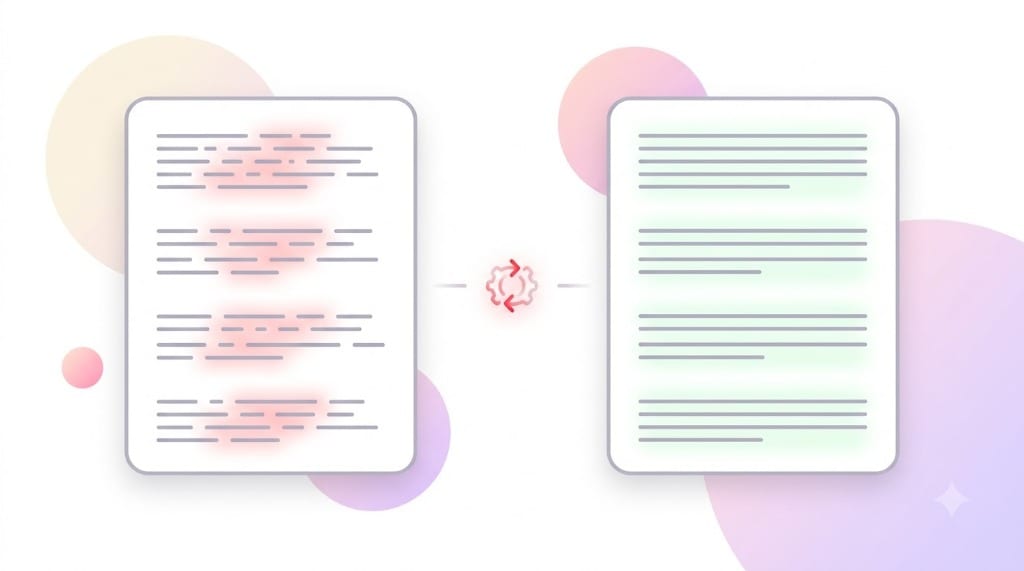
Instead of smooth, coherent paragraphs that adapt fluidly to the page margins of your target application, the copied content resembles a disjointed poem or a grocery list of partial sentences:
The clinical trial conducted over eighteen
months demonstrated unprecedented efficacy
in reducing overall patient recovery times, al-
though longitudinal observations remain
warranted across pediatric demographics.
The clinical trial conducted over eighteen months demonstrated unprecedented efficacy in reducing overall patient recovery times, although longitudinal observations remain warranted across pediatric demographics.
To understand why this happens, you must look at how the Portable Document Format (PDF) was built. Created in the early 1990s by Adobe and later standardized as ISO 32000, the primary mission of PDF was visual preservation across every possible operating system and physical printer.
Unlike HTML documents or rich text processors that rely on dynamic reflowing lines and fluid margin boundaries, a PDF has zero inherent concept of a continuous "paragraph". Instead, text inside a PDF is stored as absolute coordinates on a fixed canvas (e.g., "draw glyph string 'The clinical trial' at horizontal position X: 72, vertical position Y: 712"). When your PDF viewing application extracts this text to the operating system clipboard, it has no native semantic stream. To preserve line fidelity, it arbitrarily inserts an ASCII control character—either a Line Feed (\n) or Carriage Return + Line Feed (\r\n)—at the end of every visible row.
For a deep dive into the PostScript operators and font metrics governing this coordinate behavior, read our explainer on Why Does Text Copied from a PDF Have Broken Lines?.
The Three Critical Symptoms of "Dirty" PDF Text
When cleaning text extracted from PDF files, you will encounter three distinct formatting artifacts that require specific cleanup strategies:
- Mid-Sentence Hard Returns: The PDF viewer inserts a hard line break wherever a sentence reaches the physical right margin of the PDF column. When pasted elsewhere, the text cannot reflow naturally.
- Broken Hyphenation (Soft Hyphens): Words split across two lines for typographic justification (such as
al- \n thoughormulti- \n ple) leave behind stray hyphens and detached word fragments. - Erratic Double Spacing and Indents: PDF columns often contain fixed-width spacer characters, non-breaking spaces (
), or tabs copied from page margins.
Comparison: The 5 Methods to Clean Copied PDF Text
Depending on the volume of text, your computer setup, and your privacy constraints, you have several ways to eliminate unwanted PDF line breaks. Here is how the top methods stack up against each other:
| Cleanup Method | Processing Speed | Paragraph Retention | Hyphen Joining | Client Privacy | Best Suited For |
|---|---|---|---|---|---|
| Online Tool (Smart Mode)RemoveLineBreaksOnline.com | Instant (< 1s) | Automatic | Yes | 100% Client-Side | Daily copy-pasting, research, emails |
| Microsoft Word Find & Replace3-Step Wildcard Method | Moderate (2–3 min) | Manual Placeholder | No (Manual) | Local Offline | Long DOCX book manuscripts |
| Google Docs Find & ReplaceRegular Expressions Enabled | Slow (3–5 min) | Requires Regex | No | Cloud Stored | Collaborative team editing |
| Code Editors (VS Code / Sublime)Regex Multi-Cursor Search | Fast (30s) | Via Regex Lookahead | With Custom Pattern | Local Offline | Developers, markdown documents |
| Python Regex Automationre.sub() scripting | Automated Batch | Programmatic | Custom Script | Local Offline | Mass PDF data mining & NLP pipelines |
Method 1: The Fastest Way — Dedicated Online Line Break Remover
For 95% of users, writing custom regex scripts or executing multi-step find-and-replace macros inside Word is overly complex. The fastest and most accurate approach is using our specialized Remove Line Breaks from PDF Tool.
Copy PDF Text
Highlight any passage in Adobe Acrobat, Chrome, Preview, or Edge and press Ctrl+C (Cmd+C on Mac).
Select Smart Mode
Paste your text into the tool. Keep Preserve Paragraphs or Smart PDF selected.
Click & Copy Clean
Click "Remove Line Breaks" and hit Copy. Your text flows seamlessly into any target app with true paragraphs intact.
Method 2: Cleaning PDF Text in Microsoft Word
If you are working offline on a large document inside Microsoft Word, you can utilize Word's built-in Find & Replace dialogue. Word assigns special caret codes to whitespace elements:
^prepresents a paragraph mark (hard return created by the Enter key).^l(caret + lowercase L) represents a manual line break (soft return created by Shift+Enter).
If you simply replace all ^p with a single space, Word will flatten your entire multi-page document into one enormous unbroken block of text, erasing all headings and paragraph structure. To avoid this disaster, follow the classic Three-Step Placeholder Strategy:
- Step 1 (Protect Paragraph Boundaries): Press Ctrl + H. In Find what, enter
^p^p(which denotes two consecutive returns separating paragraphs). In Replace with, enter a unique temporary token such asXYZPARAGRAPHXYZ. Click Replace All. - Step 2 (Eliminate Wrapped Line Breaks): In Find what, enter
^p. In Replace with, press the spacebar once to insert a single whitespace character. Click Replace All. All mid-sentence line breaks are now converted into normal spacing. - Step 3 (Restore Real Paragraphs): In Find what, enter
XYZPARAGRAPHXYZ. In Replace with, enter^p^p. Click Replace All.
For detailed instructions with screenshots and shortcut tips, read our comprehensive companion article: How to Remove Line Breaks in Microsoft Word.
Method 3: Cleaning PDF Text in Google Docs via Regular Expressions
Google Docs does not utilize Word's caret codes. Instead, it supports standard regular expression syntax in its search engine per Google Docs Editor Help.
To clean copied PDF text in Google Docs:
- Press Ctrl + H (or Cmd + Shift + H on macOS) to open Find and replace.
- Check the box labeled Match using regular expressions.
- In the Find field, enter:
(?<![\.\?\!\:\n])\n(?!\n)
Explanation: This regex uses lookbehind and lookahead assertions to find any newline (\n) that is neither preceded by terminal punctuation (. ? ! :) nor followed by another newline. - In the Replace with field, enter a single space.
- Click Replace all.
Reference Table: Whitespace & Break Characters in Copied Text
When text moves from a PDF reader to your operating system clipboard, several non-printing control characters may be embedded into the string. Here is a handy reference guide:
| Character Name | ASCII Code | Escape Sequence | MS Word Code | Typical PDF Origin |
|---|---|---|---|---|
| Line Feed (LF) | 10 (0x0A) | \n | ^l or ^p | Unix/macOS systems, web text, PDF lines |
| Carriage Return (CR) | 13 (0x0D) | \r | ^13 | Old Mac OS, spreadsheet cell breaks |
| CRLF Pair | 13 + 10 | \r\n | ^p | Windows standard paragraph endings |
| Non-Breaking Space | 160 (0xA0) | \u00A0 | ^s | PDF table alignments, justified typography |
| Soft Hyphen | 173 (0xAD) | \u00AD | ^- | End-of-line hyphenated words in printed columns |
How to Fix Hyphenated Words at Line Breaks Automatically
Beyond raw line breaks, the second most frustrating aspect of copied PDF text is word-splitting hyphens. Academic and multi-column publications deliberately hyphenate long words at margin borders to preserve justified spacing (e.g. inter- \n disciplinary).
If you blindly replace every newline with a space, that word becomes inter- disciplinary, leaving an unsightly space after the hyphen. If you simply delete all hyphens, legitimate compound words such as state-of-the-art or user-friendly get corrupted into stateoftheart.
Our Online Line Break Remover includes smart hyphenation detection:
- It checks whether the hyphen is positioned immediately before a newline character.
- It tests whether the fragment on the previous line and the fragment on the subsequent line form an established dictionary or morphological word pair.
- If validated, it joins the two segments seamlessly (turning
inter- \n disciplinaryintointerdisciplinary) while preserving deliberate hyphenated words likecost- \n effective.
Frequently Asked Questions About Copied PDF Text
Why do line breaks appear in the middle of sentences when copying from PDF?
What is the difference between "Preserve Paragraphs" and "Remove All Line Breaks"?
Is it safe to paste confidential business or legal documents into this tool?
Can I clean text from scanned PDFs or OCR documents?
Related Guides & Helpful Resources
Continue optimizing your text formatting workflow with our specialized tutorials:
Why Does PDF Text Have Broken Lines? →
Learn the technical mechanics of PDF coordinate matrices and PostScript streams.
Office GuideHow to Remove Line Breaks in Microsoft Word →
Master Word caret codes, VBA macros, and bulk replacement strategies.
FundamentalsLine Breaks vs. Paragraph Breaks (\n vs \n\n) →
Understand soft returns vs hard returns and choose the optimal cleaning mode.
ProductivityBatch Remove Line Breaks from Multiple Documents →
Process dozens of document passages simultaneously with delimiter batching.
AcademicLaTeX, BibTeX & Academic Papers →
Clean broken lines from copied journal abstracts, citations, and Overleaf drafts.