
How to Remove Line Breaks in VS Code (Join Lines, Regex & Multi-Cursor)
VS Code ships three different tools for merging lines — a one-keystroke join, a regex replace that sweeps whole files, and multi-cursor surgery for scattered breaks. This guide shows when each one is the right answer, and the patterns that keep paragraphs intact.
Why Line Breaks Show Up in VS Code Files
Every file you open in VS Code is a sequence of lines — that is the editor's whole worldview. The trouble starts when a value that should be one line arrives as many: pasted data, exported logs, generated fixtures, or text wrapped by some other tool.
The most common sources are boring and universal. Data pasted from a spreadsheet carries a physical break wherever the cell had one. Log lines wrapped by a terminal arrive pre-split. Content copied from a document keeps its paragraph structure even when you only wanted the words. And a teammate's editor with a narrower window may have hard-wrapped lines into a file that was never meant to be wrapped. Our line breaks vs paragraph breaks explainer covers why those breaks look identical but behave differently once you start editing.
VS Code does not guess your intent — it offers mechanisms at three scopes. Selection-scoped joins for small edits, file-scoped regex for bulk work, and cursor-scoped editing for the in-between case. The rest of this article walks through each one with the exact keystrokes, the default keybindings, and the traps worth knowing before you press Replace All.
Selection Join
Highlight lines, press Ctrl+Shift+J, done. One undo step, no dialogs — the right tool when you can see the whole problem on screen.
Regex Replace
Ctrl+H with regex mode on, pattern for newlines, Replace All. The right tool when thousands of lines are affected across an entire file.
Multi-Cursor
Place cursors at the breaks you want gone, join once. The right tool when only some of the line endings in view should disappear.
Extensions & Tasks
Rewrap, paste-cleaners and task runners extend the same ideas to repetitive workflows and whole folder hierarchies.
Method 1: Join Lines (Ctrl+Shift+J)
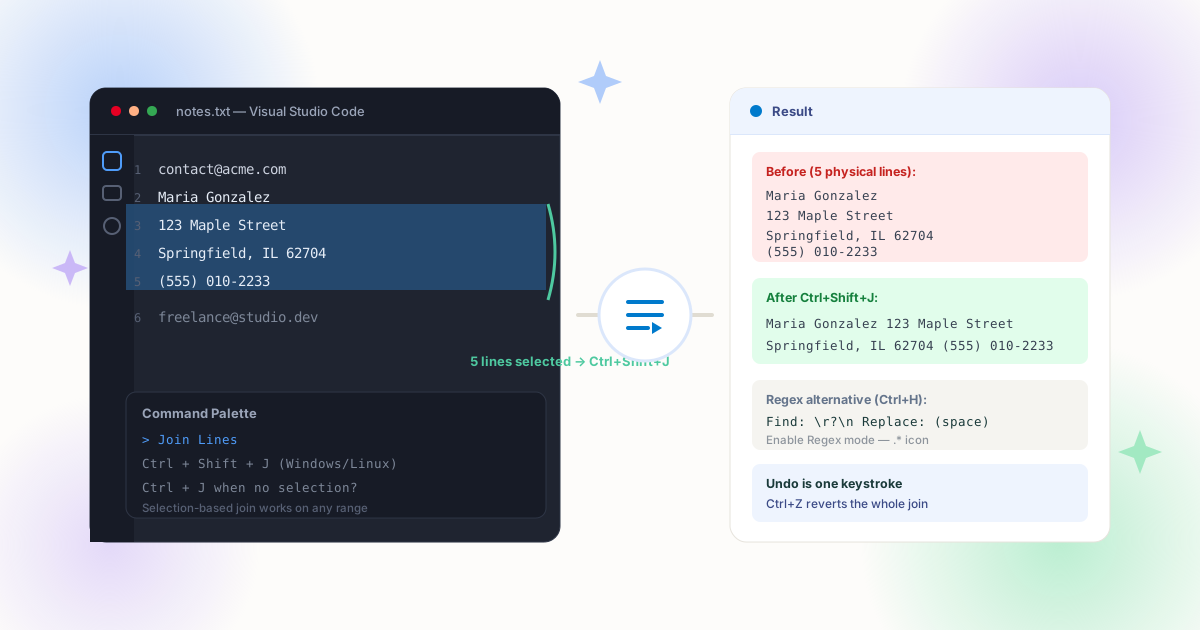
The Join Lines command is VS Code's dedicated answer to this problem. Select any run of lines — or just put your cursor on one — and press Ctrl+Shift+J on Windows and Linux, or Ctrl+J on macOS. Each press merges the current line with the next, inserting a single space where the break was. Select five lines and press once; all five become one.
Two details make the command safer than it first appears. First, it respects indentation: joining an indented line to its parent does not glue the leading whitespace of the second line into the middle of the text. Second, it is a single undo — one Ctrl+Z restores every line you just merged, which is exactly the escape hatch you want after a hasty selection. The command lives in the palette as Join Lines, and if you rebind keys through Settings → Keyboard Shortcuts, searching for "joinLines" finds it.
The limitation is scope: Join Lines works on what your selection (or cursor) covers. It will not sweep a 5,000-line log file — that is a job for regex. But for the everyday case of a pasted block or a five-line address sitting in a data file, nothing is faster.
Method 2: Regex Find & Replace
Open Find & Replace with Ctrl+H, then enable regex mode — the .* button on the right of the find field, or Alt+R. The two patterns worth memorizing:
| Goal | Find | Replace |
|---|---|---|
| Flatten entire file | \r?\n | single space |
| Keep paragraph gaps | \r?\n(?!\r?\n) | single space |
| Join, no extra spaces | *\r?\n * | single space |
| Delete blank lines | ^\s*$\r?\n | empty |
| Delete break, keep indent | (?<!\n)\n(?!\n) | empty |
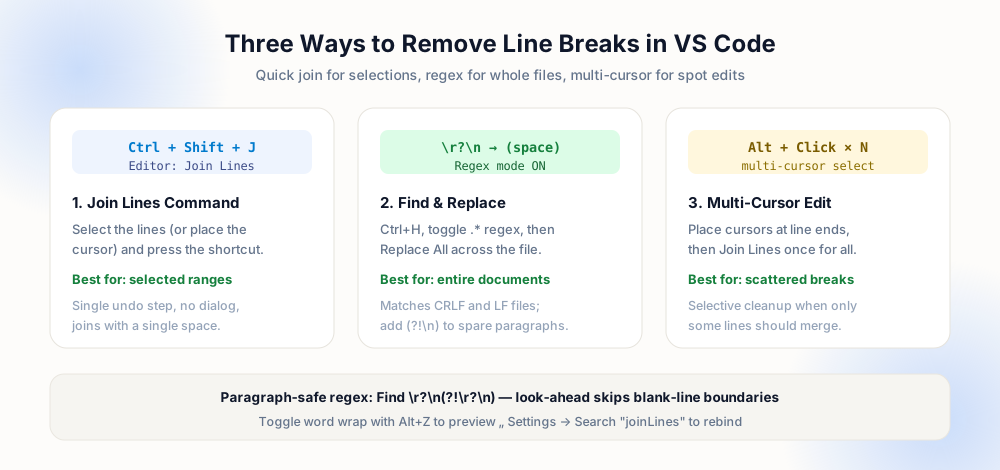
The \r?\n part deserves one note: the optional carriage return makes the pattern match Windows CRLF files and Unix LF files alike, so you never have to know which ending a file uses. If you see unmatched patterns, regex mode is off or you pressed Enter instead of typing the characters backslash-r, backslash-n — VS Code matches the characters in the file, not keystrokes. Turn on View: Render Whitespace from the palette when in doubt; dots and arrows show you exactly which invisible characters exist.
Find: \r?\n
Replace: (space)

Sprint 4 demo moved to Friday
Room B or the Meet link?
Thanks!

→ paragraphs destroyed
Find: \r?\n(?!\r?\n)
Replace: (space)

Sprint 4 demo moved to Friday
Room B or the Meet link?
Thanks!

→ wraps joined, blank lines kept
One scoping feature is worth internalizing: if you have a selection, Replace All only touches the selection. Highlight the block you intend to change, then run the replace — the rest of the file is untouchable until you clear the selection. It turns a file-wide operation into a safe local one without any extra dialogs.
Method 3: Multi-Cursor for Scattered Breaks
When breaks are irregular — six of the fourteen lines in view should join, the rest should not — multi-cursor is the precise instrument. Alt+Click at each line ending to drop a cursor (Ctrl+Alt+Down adds one below on Windows), or use Shift+Alt+I with lines selected to insert a cursor at the end of every selected line. Then run Join Lines once; every cursor merges its own line.
Two companions round out the technique. Column selection (Shift+Alt+drag, or middle-mouse drag) selects a rectangular region — useful when the breaks line up in a fixed column of a fixed-width log. And Change All Occurrences (Ctrl+F2) selects every instance of the current word, which pairs with typing to rewrite a delimiter everywhere at once. Between the three, no arrangement of unwanted breaks requires you to touch them one at a time.
Beyond the Basics: Settings, Extensions and Automation
A few settings change how all of the above behaves. files.trimTrailingWhitespace removes leftover spaces on save — powerful, but note that Markdown uses two trailing spaces as its hard-break syntax, so exclude Markdown if you use that convention (language-specific overrides in settings.json handle this). editor.wordWrap controls visual wrapping — pressing Alt+Z toggles it, and remember visual wrap never modifies the file; it only changes how lines are displayed. Confusing the two is a classic reason people think their newlines "disappeared" when nothing in the file changed at all.
For repetition, the ecosystem fills the gaps. The Rewrap extension re-flow paragraphs to a configured column — the inverse operation, but it shares the same paragraph-detection logic, so teams that wrap also unwrap cleanly. The Command Palette's Transform commands (uppercase, lowercase, sort lines) sit next to Join Lines for text-shaping tasks. And for files outside the editor, VS Code's integrated terminal runs the same transformations with sed or tr — our batch remove line breaks guide includes those shell pipelines for whole folders. The official editing basics documentation is the canonical reference for all of these commands and their default bindings.
| Situation | Use | Keystroke |
|---|---|---|
| 5 lines visible on screen | Join Lines | Ctrl+Shift+J |
| Whole file needs flattening | Regex replace | Ctrl+H + Alt+R |
| Only some line endings | Multi-cursor + join | Alt+Click then join |
| Selection is risky | Scope replace to selection | highlight, then Ctrl+H |
| Dozens of files | Terminal pipeline | see batch guide |
For content that is already clean but arrived from another app — an AI tool, a document, an email — the browser-based tools on this site preview the transformation before you commit, which is occasionally a better first step than editing the source file. The AI text cleanup guide covers that pipeline; when the file is code or data you own, stay in VS Code and use the methods above.
Command Palette Cheat Sheet
Everything in this article is reachable from one place — open the palette with F1 (or Ctrl+Shift+P) and type the command name. Binding the two or three you use daily to custom keys removes even the palette round-trip; Settings → Keyboard Shortcuts shows every candidate and its current binding:
| Command | Default | Does |
|---|---|---|
| Join Lines | Ctrl+Shift+J | Merges selected (or current) lines with one space |
| Toggle Find / Replace | Ctrl+H | Opens find and replace with regex toggle (Alt+R) |
| Toggle Word Wrap | Alt+Z | Visual reflow only — the file is never modified |
| Render Whitespace | palette | Dots and arrows expose spaces, tabs and CR/LF |
| Trim Trailing Whitespace | palette | Removes line-end spaces (guard Markdown files) |
| Insert Cursor at Line Ends | Shift+Alt+I | Multi-cursor on every selected line, ready to join |
A final word on muscle memory: the teams that do this well pick one workflow and stick with it. Selection plus Join Lines covers ninety percent of interactive edits; one saved regex covers the batch cases; and the occasional oddity — Unicode line separators in old files, a file mixed between CRLF and LF line endings — is quickly diagnosed with Render Whitespace rather than guessed at. When a file type keeps recurring (exported logs, pasted fixtures), add a language-specific setting or a snippet so the right behavior is the default the next time the file opens. And when the text is not in a file at all but sitting in a browser tab, the transformation tools on this site produce identical output for a quick copy-paste — no editor required.
Pre-Replace Checklist
- Regex mode is on — the
.*button glows when active; Alt+R toggles it from the keyboard. - The pattern shows a match count — run Find first; zero or "all" both deserve a second look before Replace All.
- Paragraph boundaries are protected — prose files get the
(?!\r?\n)lookahead or a placeholder pass. - Line ending style is known — Render Whitespace shows CR vs LF;
\r?\nmatches both anyway. - The file is saved or in git — Ctrl+Z is one step, but a saved revision is a guarantee.
Frequently Asked Questions
How do I join multiple lines into one line in VS Code?
Ctrl+Shift+J (Windows/Linux) or Ctrl+J (macOS). The Join Lines command merges them into a single line with spaces between the former line contents. One Ctrl+Z reverts the entire join.How do I replace line breaks with spaces in VS Code?
Ctrl+H, enable regex mode, search for \r?\n and replace with one space, then Replace All. The optional carriage return covers both Windows and Unix files. For prose, use \r?\n(?!\r?\n) so blank-line paragraph gaps survive.Why does my regex not match line breaks in VS Code?
.* button or press Alt+R. Also make sure you typed the characters backslash-r-backslash-n rather than pressing Enter, and that you are not inside a selection that excludes the target lines.How do I remove line breaks without touching the whole file?
Does Alt+Z word wrap change my file?
Explore Related Tools & Tutorials
Notepad++ Regex Line Break Removal →
The same patterns in the classic desktop editor, with mode-by-mode guidance.
GuideLine Breaks in HTML, CSS & JavaScript →
What happens to your newlines once the file hits the browser.
GuideBatch Remove Line Breaks →
When the folder has fifty files, move the same logic to the terminal.
ToolRemove All Line Breaks →
Preview the exact transformation in the browser before you write the regex.
ScriptingRemove Line Breaks in PowerShell →
Move the same logic out of the editor — files, folders and -WhatIf dry runs.
Editor ComparisonSublime Text & Vim / Neovim →
Compare VS Code join lines with Sublime Ctrl+J and Vim J / :%s commands.